Clipping guide
How to clip GTA from PS5 (GTA V and GTA 6)
Step-by-step: how to capture, save and clip GTA V and GTA 6 gameplay on PS5, get it to your phone, and turn it into vertical clips for TikTok, Shorts and Reels.
Your PS5 is already a clipping machine. Whether you're running GTA V or GTA VI, you can capture moments, get them to your phone and turn them into vertical clips without a capture card or a PC. Here's how.
Three ways to clip GTA on PS5
- Built-in capture: save the last few minutes of gameplay or record a new clip with the Create button.
- Stream, then clip the VOD: broadcast to Twitch or YouTube straight from the PS5, then clip the best moments from the VOD.
- Capture card: record to a PC for full control. Great quality, but more gear than most clippers need.
Option 1: Built-in PS5 capture
- Open Settings → Captures and Broadcasts and choose your video format and resolution, plus how much recent gameplay to keep.
- Set your Create button shortcuts so one press saves recent gameplay. That way you can grab a crash or escape right after it happens.
- Play. When something great happens, press Create and choose Save recent gameplay (or use your shortcut).
- Open the Media Gallery to trim the clip down to just the moment.
Tip: keep game audio balanced and party chat off (or captured separately) when you plan to post. Clean audio makes voice-overs and captions much easier.
Option 2: Stream from PS5, then clip the VOD
If you stream GTA anyway, this is the most efficient way to work. Link Twitch or YouTube in your PS5 settings, go live from the Create menu, and save your broadcasts as VODs. After the session, scrub the VOD for highlights instead of clipping mid-game.
In Never Wasted, your own PS5 stream shows up as a source next to creators' VODs. Paste the link and Marlo flags the moments worth cutting.
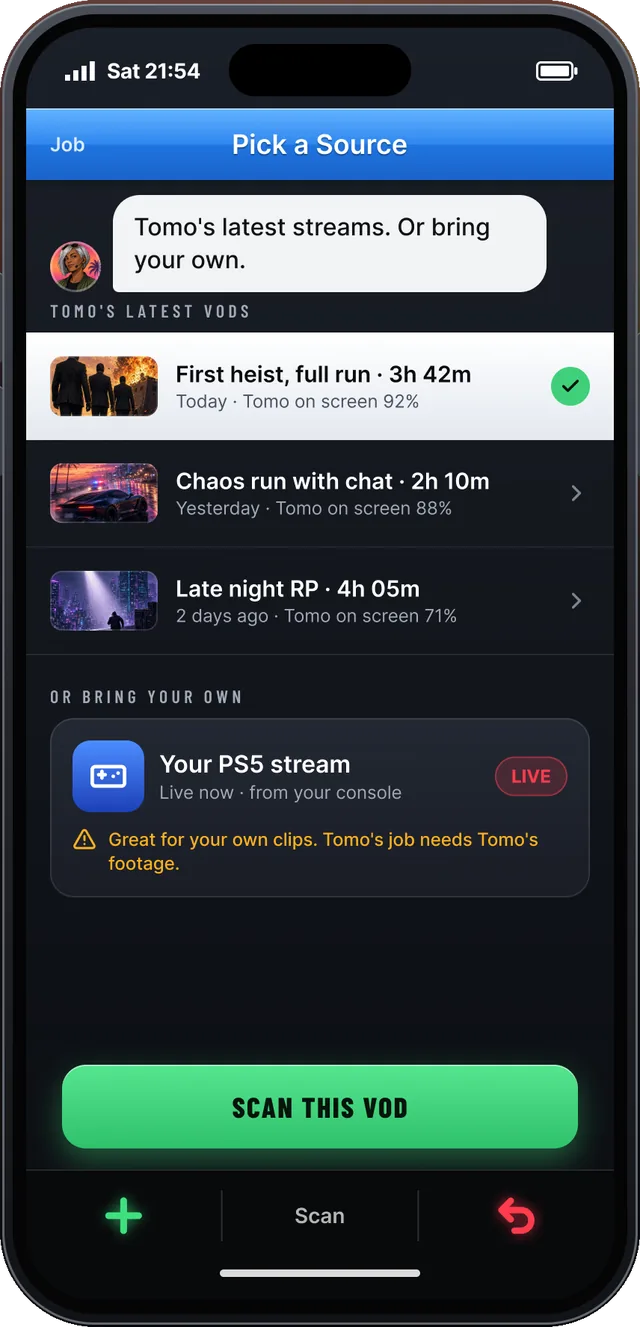
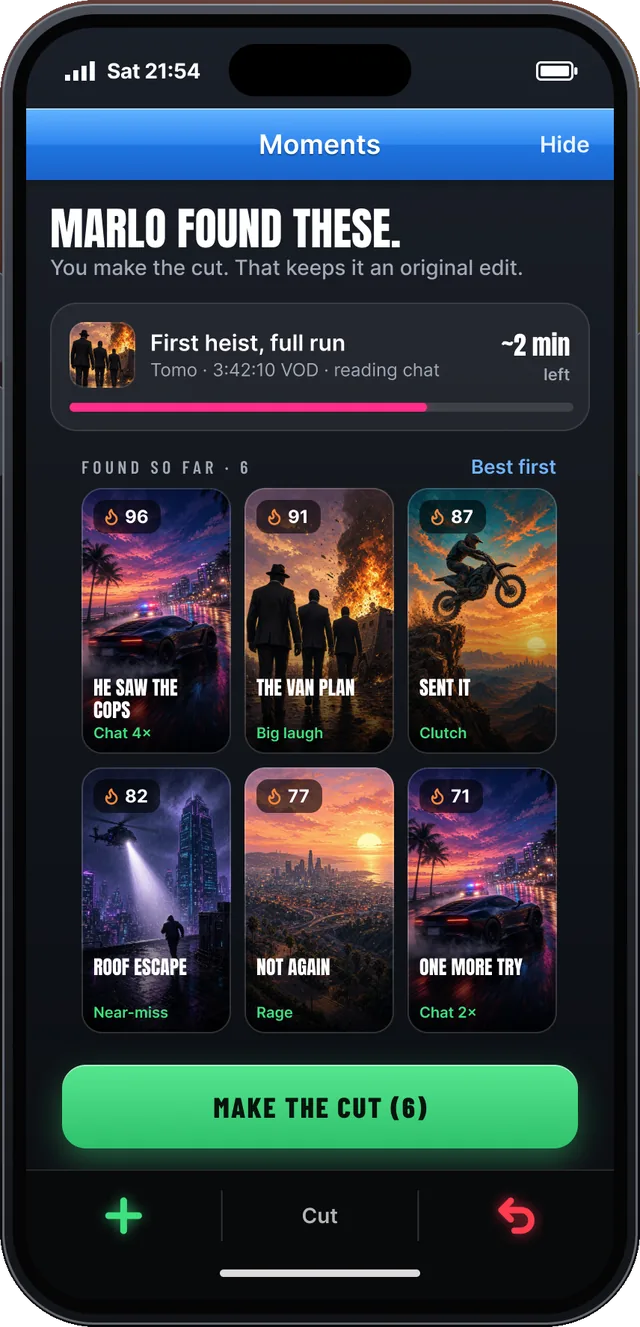
Picking your own PS5 stream as a source, then the moments found. Example data.
Getting PS5 clips to your phone
- PlayStation App: turn on auto-upload for captures in your PS5 settings. Captures appear in the PlayStation App for a limited time, and you can download them to your phone.
- USB drive: copy captures from the Media Gallery to a USB drive, then move them to your phone or computer.
- Stream VOD: if you streamed it, you don't need to move files. Work straight from the VOD link.
Making it vertical for TikTok, Shorts and Reels
- Crop to 9:16 and keep the action centred. For driving clips, follow the car, not the mini-map.
- Put the hook in the first second, as on-screen text or voice.
- Burn in captions that read on mute.
- Keep it short. 15 to 45 seconds is the sweet spot for most GTA moments.
- If you're posting for a campaign, run the rule check: CTA, hashtags, @handle and visible likes.
Related: GTA clipping rules · GTA 6 clipping guide
FAQ
How long can a PS5 clip be?
The PS5 can save recent gameplay and record new gameplay for anything from a few seconds up to an hour, depending on your capture settings. For short-form clips, you will trim down to 15 to 60 seconds anyway.
How do I get PS5 clips to my phone?
Turn on auto-upload for captures in your PS5 settings and they appear in the PlayStation App for a limited time, where you can download them to your phone. You can also copy captures to a USB drive.
Can I use my own PS5 gameplay in clipping campaigns?
Only if the campaign allows it. Most campaigns pay you to clip a specific creator's streams. Your own PS5 footage is great for growing your own channel and for campaigns that accept original gameplay.